
Summary and Setup
This lesson aims to teach those just starting to undertake research how to manage their data and files.
After completing this course, the learners should be able to:
- Define research data and distinguish between different data types.
- Structure research materials using clear file naming conventions and a logical folder hierarchy
- Describe methods of data collection that make data cleaner and easier to analyse
- Detect inconsistencies and errors in a tabular dataset (“dirty data”)
- Use a set of basic techniques to remove/correct errors and inconsistencies in tabular data (“cleaning data”)
- Use version control to track different versions of files, and switch between them.
Prerequisite knowledge
Before coming to this training, learners should have:
- Basic spreadsheet skills (e.g., opening and saving tables)
- Ability to create, delete, and move files on a computer (Windows, Mac or Linux)
- A research project in progress or data to work with
Before joining the workshop, please complete the data and software setup described in this page.
Lesson Resources
For the episode: Structuring Research Materials
We will be using some example files and folders during the workshop.
Please download them before the session begins:
Download lesson resources (ZIP)
After downloading, locate the ZIP file in your Downloads folder. Right-click and select Extract All (or double click on Mac). Move the extracted folder somewhere easy to access (e.g. Desktop).
For the episode: Tabular Data Collection
Download the dataset called
Met_Objects_Dataset_sample.txt by visiting the link below
and clicking the download button (highlighted in the screenshot):
Met_Objects_Dataset_sample.txt on GitHub
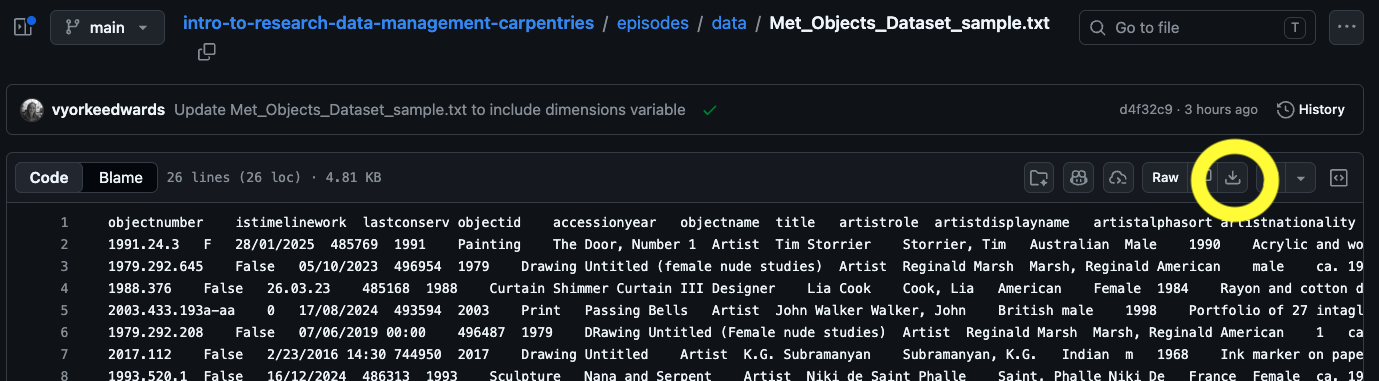
Save the file somewhere easy to find, such as your Desktop.
This file is a shortened and modified version of the Metropolitan Museum of Art’s Open Access CSV, released under a CC0 license on github.
The file is tab-delimited, meaning values in each row are separated by tabs rather than commas. You will need to tell your spreadsheet software how to open it correctly.
- Download the dataset called
Met_Objects_Dataset_sample.txt. - Open LibreOffice Calc.
- Click the File tab, click Open, navigate to the dataset, select it, and click Open.
- A Text Import dialog will appear. LibreOffice should detect that the file is tab-delimited (i.e. within each row a gap is used to separate values into their columns). Click OK.
- Save the file as an ODF spreadsheet: go to File > Save
As, set the file type to ODF Spreadsheet
(.ods), and save it as
Met_Objects_Dataset_sample.ods.
- Download the dataset called
Met_Objects_Dataset_sample.txt. - Open Microsoft Excel.
- Do not open a blank sheet. Instead, click Open,
then navigate to the dataset. You may need to set the file type filter
to All Files to see the
.txtfile. Select it and click Open. - Excel should detect that the file is tab-delimited (i.e. within each row a gap is used to separate values into their columns). Check that Delimited is selected and click Next.
- Check that Tab is selected under Delimiters and click Next.
- Click Finish.
- Save the file as an OpenDocument spreadsheet: go to File
> Save As, set the file type to OpenDocument
Spreadsheet (.ods), and save it as
Met_Objects_Dataset_sample.ods.
Software Setup
Details
This workshop requires access to a spreadsheet program. For example: Microsoft Excel, LibreOffice, Apple Numbers, Gnumeric, Onlyoffice, WPS office, among others.
We encourage you to use Microsoft Excel or LibreOffice (a free, open source alternative). Installation instructions are provided below for LibreOffice:
-
Download the Installer
Install LibreOffice by going to the installation page. The version for Windows should automatically be selected. Click Download. You will go to a page that asks about a donation, but you don’t need to make one. Your download should begin automatically. -
Install LibreOffice
Once the installer is downloaded, double click on it and it should install.
-
Download the Installer
Install LibreOffice by going to the installation page. The version for macOS should automatically be selected. Click Download. You will go to a page that asks about a donation, but you don’t need to make one. Your download should begin automatically. -
Install LibreOffice
The file LibreOffice_X.X.X_MacOS_x86-64 (whichever version of LibreOffice you have selected) should have been downloaded. Double click on this file, and LibreOffice will be installed.
-
Download the Installer
Install LibreOffice by going to the installation page. The version for Linux should automatically be selected. Click Download. You will go to a page that asks about a donation, but you don’t need to make one. Your download should begin automatically. -
Install LibreOffice
Once the installer is downloaded, double click on it and it should install.