
Structuring Research Materials
Last updated on 2026-05-26 | Edit this page
Overview
Questions
- How can you structure data using a standard folder system for better organisation?
- What are the benefits of using a consistent file naming convention in research data management?
- Why is version control important, and how can it be incorporated into file naming practices?
- In what ways can version control tools like Git and GitHub be useful for managing data?
Objectives
- Organise your research data into a standard folder structure
- Name files with a consistent naming convention
- Understand why version control is important, and how to incorporate this into your naming conventions
- Explain why version control software such as Git/GitHub can be useful for certain types of data.
Folder systems
Alex has recently started a PhD on a project that has been running for a few years. He has been given access to the project’s folders and has been asked by his supervisor to look through some files left by a researcher who recently left.
Organising files into a folder structure Part I
In groups, look through Folder 2.1, without opening any of the files in it, and discuss the following questions:
- What problems can you identify with how files are organised?
- How many different datasets can you identify?
- Which files are ‘raw’ vs ‘processed’ data?
- How would you improve the organisation of the files?
When thinking about how you could improve the organisation of the files, consider whether it might be easier to split them between different folders and whether any might need renaming
Alex goes to his supervisor and explains the problems he has found. His supervisor asks him to improve the organisation of the files as he is concerned that no-one will be able to find anything.
Organising files into a folder structure Part II
Individually, look at Folder 2.1 again and, within it create a set of folders to organise each file into. You may want to create subfolders inside some of these folders too. Organise the files into your folders. Please note: You will not need to open or rename any of the files for this exercise.
- Alex sees that during the project the researcher gave a presentation at a conference and that alongside the slides, there are lots of documents relating to his attendance. Think about the different ways files related to the conference might be stored and consider which might be better for a team needing to share files, versus how an individual might be happy to store them.
- There are also various files related to a data analysis: can you see the different stages of that analysis process? How might you organise them?
Poor organisation can make it difficult to find files, or to even realise that a specific file exists. This becomes a particular problem when multiple people are working together, or on projects that run over a number of years.
When organisation breaks down:
- Out-of-date versions of files may end up being used and shared
- Important documents can be effectively lost
- Search tools only help if you already know the file exists and roughly what it was called - if you weren’t the person who created it, how would you know?
If you think back to documents you created a few years ago, would you still be able to say what they were all called, what the latest versions were, and what they all related to?
Taking a few moments to think about folder structure early on can save a lot of stress and time - both for your future self and for anyone you work with. If you work across multiple projects, developing a consistent approach means everyone always knows where to look for a given type of file. Structure folders hierarchically: start broad and drill down into specific areas.
It can be worth thinking of an old fashioned set of filing cabinets:
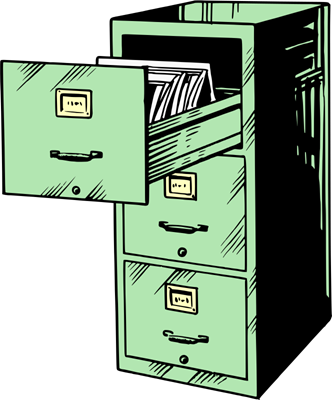
- each filing cabinet is a project
- each drawer is an aspect of the project e.g. drawer 1 for data collection; drawer 2 for analysis; drawer 3 for papers and presentations
- within each drawer are folders containing files about specific subsections of that aspect e.g. in drawer 2 there are separate folders for code, raw data, cleaned data, graphs/ figures, and reports
- within each folder in each drawer, there may be further sub-sections….
In practice, a research project folder might look something like this:
my_project/
├── data/
│   ├── raw/
│   └── processed/
├── analysis/
│   ├── scripts/
│   └── outputs/
├── reports/
│   ├── drafts/
│   └── submitted/
└── admin/
    ├── conference/
    └── expenses/
However, do be sensible about the level and number of folders you use: if you have lots of folders that only contain one file, you may have too many, making it more difficult and time-consuming to navigate. If you have very few folders, then there may be too many files in a folder, making it difficult to find the relevant one.
Give each folder a name that is meaningful and concisely describes the contents of the folder, such as “raw_data”, “conference_presentations”, “expenses”.
Whatever structures you choose, it is worth periodically reviewing them to make sure they are still fulfilling their purpose. Perhaps a section of the project folders can be archived? Perhaps there are now enough files of a particular type to necessitate a new folder?
In summary:
- Use folders! Don’t just save files onto your desktop and expect to be able to find everything in future.
- Structure hierarchically. Start broad and drill-down into specific areas or projects
- Use a sensible number of folders. Too few or too many may both make it difficult or time-consuming to find files.
- Use sensible names. Consider project names and the types of files in each folder, such as “raw_data”, “conference_presentations” or “expenses”
- Develop a consistent approach across projects
- Review folder content periodically, and consider moving folders and files that are no longer needed into an ‘archive’ folder
File naming
Alex takes another look at the folder system he has created. The files are easier to search through, but he notices that there are lots of inconsistencies in how those files are named.
Naming Files Part I
Open Folder 2.2 and look at the names of the files (you will not need to to open the files). Can you identify any problems with the way the files are named? What kinds of issues might they cause for those working on the project?
Poor file naming practices can make it difficult and time-consuming to find files. They can also lead to people working on the wrong version, or overwriting important files and losing data that cannot be recovered.
Taking some time at the start of a project to agree on a naming convention will save effort in the long run - both for you and for any colleagues you work with.
Below are some key considerations when creating file names:
What information to include
Carefully consider what information someone would need about the file to know it is the one they want. Do they need to know when it was created? Do they need to know what type of data it contains, for example, raw data, clean data? Does the file relate to a specific ID number? Some of those items of information might be good candidates to form part of the file name.
Whether you need to be able to order the files by a characteristic
Whatever you most often need to find should go at the start of the file name, because files sort alphabetically from left to right. Some examples:
-
Date first - useful when the date is the primary
way you distinguish files, for example a daily instrument export where
there is only one file per day:
20260513_readings.csv -
Sample ID first - useful when you process many
samples on the same day, making the date a poor distinguishing feature.
Putting the sample ID first means all files for a given sample sit
together when sorted:
SAMP042_20260513_raw.csv -
Participant or site ID first - common in clinical
or social research where data is organised around individuals or
locations rather than dates:
P014_interview_transcript.txt
Sometimes you may need to balance two requirements. If you need to
find the most recent file for a specific sample, you might use
sampleID_date, which groups by sample first and sorts
chronologically within each group.
Special Characters and Spaces
Avoid using special characters (such as ?#!“£$%^&*{}@/|<> ) as operating systems and apps may handle these very differently, sometimes being completely unable to open a file with them in their name, or not recognising them at all. Some special characters have a meaning in particular programming languages, and may be interpreted as instructions to the computer rather than as part of the file name.
What are special characters?
Special characters are any characters that are not letters (A–Z, a–z), numbers (0–9), hyphens (-), or underscores (_). Common examples include:
? # ! " £ $ % ^ & * ( ) { } @ / \ | < > : ; ' ~
Some of these characters have a specific meaning to operating systems or software, which is why they can cause problems in folder and file names:
-
/and\are used to separate folders in file paths (e.g.Documents/project/data), so including one in a file name can confuse the computer about where the path ends and the name begins -
:is used in Windows file paths (e.g.C:\) and is not allowed in file or folder names on Windows - Characters like
*,?, and"are used by operating systems and command-line tools as instructions (e.g.*means “match any file”), so they may be misinterpreted when they appear in a name - Some characters may display differently or cause errors when files are shared across different operating systems (Windows, Mac, Linux), making it harder to open or find those files
Similarly, spaces in file names can cause problems:
Naming Files Part II
Look at the file name below:
STAR final results.xlsx
How do you think this might be interpreted by a computer? How might you rewrite the name to avoid that?
If you have spaces in a file name, the computer may interpret a space as showing that the end of the file name has been reached, and therefore not treat the rest of the name as part of the file name. Alternatively, it may interepret it as several file names listed one after the other e.g. STAR final results.xls is either:
1 file named STAR followed by the command ‘final’…
3 files named:
- STAR
- final
- results.xls
A better way to write this file name would be STAR_final_results.xls or STAR-final-results.xls
Recommendation: Use only numbers and letters (without accents) and use hyphens and underscores instead of spaces, to separate the different parts of the file name.
Dates
Naming Files Part III
Look at the file names below:
01022026_sputum_culture_results.csv
03_09_2025_sputum_culture_results.csv
05Jun25_sputum_culture_results.csv
120126_sputum_culture_results.csv
12252026_sputum_culture_results.csv
What order were those files created in? Are you sure?
If the files came from laboratories in both the UK and in the USA, would that raise any concerns about how to read the dates on the files?
Dates are a frequent cause of issues for researchers. Researchers from different countries may read date numbers differently: “05062026” may be one person’s 5th of June (e.g. in the UK), while for another it’s 6th of May (e.g. in the USA). Ensuring that everyone looking at the date reads it correctly can be the difference between the correct file being selected, and the wrong one.
Naming Files Part IV
Look at those file names again:
01022026_sputum_culture_results.csv
03_09_2025_sputum_culture_results.csv
05Jun25_sputum_culture_results.csv
120126_sputum_culture_results.csv
12252026_sputum_culture_results.csv
Note that they were given in the order they would appear in a folder, i.e. in numerical and alphabetical order.
Can you think of a better way to write the dates, so that the files appear in date order?
A good format for dates is YYYYMMDD (the ISO 8601 standard), or YYYY-MM-DD. This format ensures that everything can be easily ordered by year, then month, and then day. Seeing the year at the start of the date also indicates to those looking at the files that the date is probably being handled in this way.
Does your field have its own naming conventions?
Before inventing a naming convention from scratch, it is worth checking whether your discipline already has a standard - some fields have well-established conventions that make data easier to share, deposit in repositories, and reuse by others.
A few examples:
-
Neuroimaging (BIDS): The Brain Imaging Data
Structure standard specifies both folder layout and file names, such as
sub-01_ses-01_task-rest_bold.nii.gz. Files deposited to OpenNeuro must follow this format. - Clinical research (CDISC): The Clinical Data Interchange Standards Consortium defines naming and structure for trial data submitted to regulators (e.g. the FDA and EMA). Variable names, domain codes, and file layouts are all specified.
-
Genomics: Sequencing files submitted to
repositories such as NCBI’s Sequence Read Archive are assigned standard
accession numbers. Many labs also follow community conventions for raw
read files, such as
sampleID_R1.fastq.gz. - Ecology and biodiversity: The Darwin Core standard defines a common vocabulary for recording species observations, including how to express dates, locations, and identifiers.
If a standard exists for your field, using it from the start will save work later - particularly when it comes to depositing data in a repository or sharing it with collaborators.
Version control
Alex has now organised the folders and renamed many of the files. Things look much better, but as he works through the project, he notices something worrying.
For several documents, there are multiple slightly different versions of the same file, and it’s not always clear:
Which one is the most recent
What changed between versions
Who made those changes, or why
Some files include ‘final’ in the name… sometimes more than once.
When the wrong version makes the news
In 2010, economists Reinhart and Rogoff published a widely cited paper claiming that countries with government debt above 90% of GDP experienced sharply slower economic growth. The paper influenced austerity policy in the UK, US, and Europe. In 2013, a graduate student attempting to replicate the work found that several rows of data had been accidentally excluded from a formula in their Excel spreadsheet - the wrong version of the analysis had effectively been published. When corrected, the paper’s central finding largely disappeared. The policies had already been implemented.
Versions Everywhere
Look at the files in Folder 2.3 (do not open the files):
How many different versions of the same document can you find?
How can you tell which one is the “latest”?
Are you confident you’d pick the right file to work on?
What might go wrong if different people used different versions?
You don’t need to open the files to answer these questions.
Focus on the file names themselves:
- Look for words like
final,draft,v1,v2, or dates - Notice whether the versioning scheme is consistent across files
- Ask yourself what assumptions you’re making when deciding which file is “latest”
Would someone new to the project make the same assumptions?
Can’t I just check “Date Modified”?
When trying to work out which file is the most recent, it might seem easy to sort by the date modified or date created shown in your file browser. Unfortunately, these timestamps are not always reliable guides:
- Copying a file resets its “date created” to the moment it was copied, even if the original was created years earlier
- Date modified can change unexpectedly - opening a file and accidentally pressing a key, or a programme auto-saving, can update the timestamp without any meaningful change to the content
- Moving files between folders, drives, or computers can reset one or both timestamps, depending on the operating system
- Restoring files from a backup may set the timestamps to the moment of restoration rather than when the file was last genuinely edited
- Synchronisation tools (such as cloud storage services) may update timestamps when files are synced, even if the content has not changed
This means that “Date Modified” can appear to show a recent date on a file that is actually an old version, and an older date on what is actually the most current copy. Relying on timestamps alone to identify the latest version of a file is therefore risky. Including version information directly in the file name, or using version control software, is a much more reliable approach.
When the wrong data file reaches the clinic
Between 2006 and 2010, a research team at Duke University published a series of papers claiming that genomic signatures could predict how cancer patients would respond to chemotherapy. Other researchers attempting to reproduce the work found systematic data errors: rows had been shifted, sample labels mixed up, and in some cases, earlier or incorrect versions of data files had been used in analyses. By the time the problems were fully documented, clinical trials had been opened on the basis of the flawed results. Several papers were retracted, and the trials were halted.
The researchers who uncovered the errors later described the process of reconstructing which file had been used for which analysis as one of the central difficulties - version information simply had not been recorded.
Baggerly, K.A. & Coombes, K.R. (2009). Deriving chemosensitivity from cell lines: forensic bioinformatics and reproducible research in high-throughput biology. Annals of Applied Statistics, 3(4), 1309–1334. https://doi.org/10.1214/09-AOAS291
Version control is about tracking change over time, so that you can:
See what changed
Return to earlier versions if needed
Understand how a file reached its current state
Just setting out clear file naming conventions and using them consistently can go a long way towards ensuring you can do all of these things.
Recommendations
-
Use version numbers to indicate the order that document versions were created in. Decimal points can be used to indicate intermediate versions; whole numbers to indicate major versions at key points in the document’s lifecycle.
For example:
- v0.1: a very early first draft
- v1.0: the first version circulated to other authors for initial comments
- v1.1: an updated version based on those comments
- v2.0: the version submitted to a publisher
- v3.0: the version resubmitted after revisions based on reviewer comments
Sometimes appending dates may be more appropriate. If so, use the YYYYMMDD format and consider its position in the file name so that the files are always ordered correctly when sorted alphabetically.
Where a document has reached a key point in its lifecycle, such as being submitted to a publisher, it may be helpful to append a short word or phrase such as “Submitted” or “Submitted_revision” to clarify that - but do use version numbers too!
Where there are lots of versions of a document in a folder, it may be appropriate to create a subfolder to keep previous versions in. This helps you and any colleagues to be able to quickly find the current version, which is particularly important if the document is a Standard Operating Procedure or Manual.
However, while file naming conventions can help, they aren’t always enough on their own.
Version control tools
For some types of work, particularly text-based files like code, scripts, and documentation, specialised version control tools can be extremely useful.
These tools are designed to:
Automatically record changes
Keep a history of edits
Show exactly what changed between versions
Support collaboration without overwriting others’ work
When might tools help?
Consider the following types of files:
Word documents
Spreadsheets
Analysis scripts (e.g. R, Python)
Survey questionnaires
Images or PDFs
In small groups, discuss:
Which of these changes frequently?
Which are hard to merge if two people edit them?
Which might benefit most from automated version tracking?
Imagine two people editing the file at the same time: what would be easy to reconcile, and what would be painful?
Not all files benefit equally from version control tools. Files such as images or spreadsheets (i.e. non-text files) can be harder to manage, while plain text files work particularly well.
A simpler approach for non-text files: cloud collaboration tools
For files like Word documents, spreadsheets, or presentations, a shared cloud storage service (such as OneDrive, Google Drive, or SharePoint) can be a practical alternative. Rather than emailing a file back and forth - and ending up with multiple slightly different copies in different inboxes - collaborators can work from a single shared link. Everyone edits the same file, in the same place, at the same time.
This avoids the version confusion that comes with emailing attachments, and most of these tools also keep a version history so you can see earlier states of the file if needed.
However, it can make keeping very specific versions of files trickier, and it can be confusing if a collaborator makes unexpected changes, so think about how to manage them, and agree a process with everyone involved.
Thinking ahead
Without worrying about how to use them yet:
What advantages might a version control tool offer over manual file naming?
What new challenges might it introduce?
In what situations might it be unnecessary or overkill?
You might want to think about: how do you currently keep track of changes? What information gets lost when files are renamed or overwritten?
Also consider scale: one person vs a team? One week vs several years
Git and GitHub
Git is a version control tool, and GitHub is a platform that hosts Git projects and supports collaboration. They are primarily designed for managing code and other plain text files - they are not a general-purpose solution for all research files.
They are particularly useful for files that are:
- text-based (such as code, scripts, and documentation)
- edited frequently
- worked on by more than one person
They are generally less helpful for files like images, PDFs, spreadsheets, or heavily formatted documents (such as Word or LibreOffice files). Not all collaborators may feel comfortable with using them too, as there is a little bit of a learning curve.
File naming can help manage major versions (for example,
report_v1, report_v2), but version control
tools go further; they can record every change and allow you to
return to a specific point in time, a bit like “Track Changes” for an
entire project.
You won’t be expected to use Git or GitHub yet. For now, it’s enough to understand why such tools exist and when they might be useful.
Terminology preview
You may hear version control tools described using terms like:
- Repository: a project’s home: the files and their record of changes
- Commit: a saved snapshot of changes, with a short note about what was done
- History: the timeline of commits showing how the project evolved
You don’t need to know how to use these yet. For now, think of them as names for ideas you’ve already encountered when trying to keep track of different versions of files.
- Organise files into a hierarchical folder structure: start broad and drill down into specific areas, using a sensible number of folders with meaningful names
- Use a consistent file naming convention across a project so that you and your colleagues can easily find and identify files
- Avoid spaces and special characters in file names; use hyphens or underscores to separate parts of the name instead
- Use the YYYYMMDD (ISO 8601) date format in file names to ensure files sort correctly in date order
- Use version numbers (e.g. v1.0, v1.1) or date-based suffixes to track document versions, and keep earlier versions in a clearly named subfolder
- Version control tools such as Git and GitHub are particularly useful for text-based files (code, scripts, documentation) that change frequently or are worked on collaboratively